
VAVADA APK Download
APP install guide · Real device tested
This is the Android package used in our latest test
- Version
- 1
- File Size
- 777kb
- Updated
- 01 Oct 2026
- Tested On
- Redmi note 10s pro Android 14
How to Install
- 1
Visit official website
Go to https://vavada.com/en for downloading APK

- 2
Find icon to download app
Now scroll down to bottom you will find option to download app IOS and Android

- 3
If Chrome shows a warning
Tap Download anyway or Keep file. This is normal for APKs not from Play Store.
[Screenshot: If Chrome shows a warning] - 4
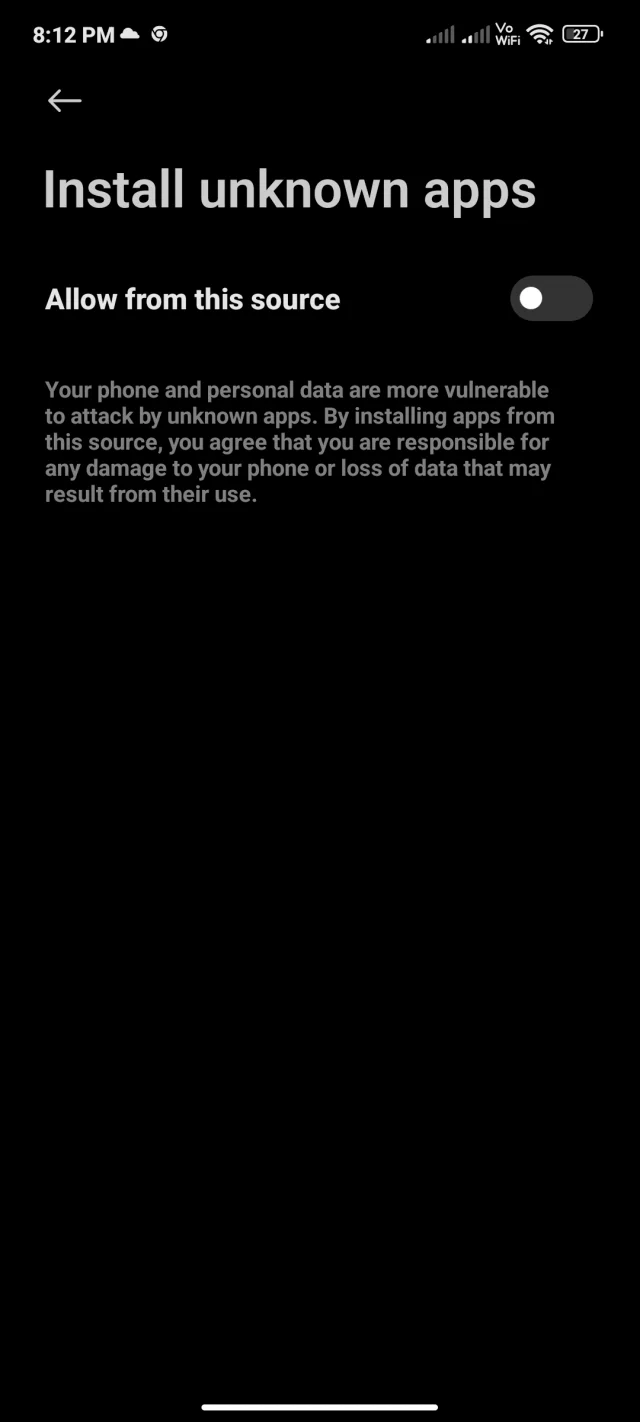
Allow install from unknown sources
Go to Settings -> Apps -> Special access -> Install unknown apps -> select your browser -> Allow.
- 5
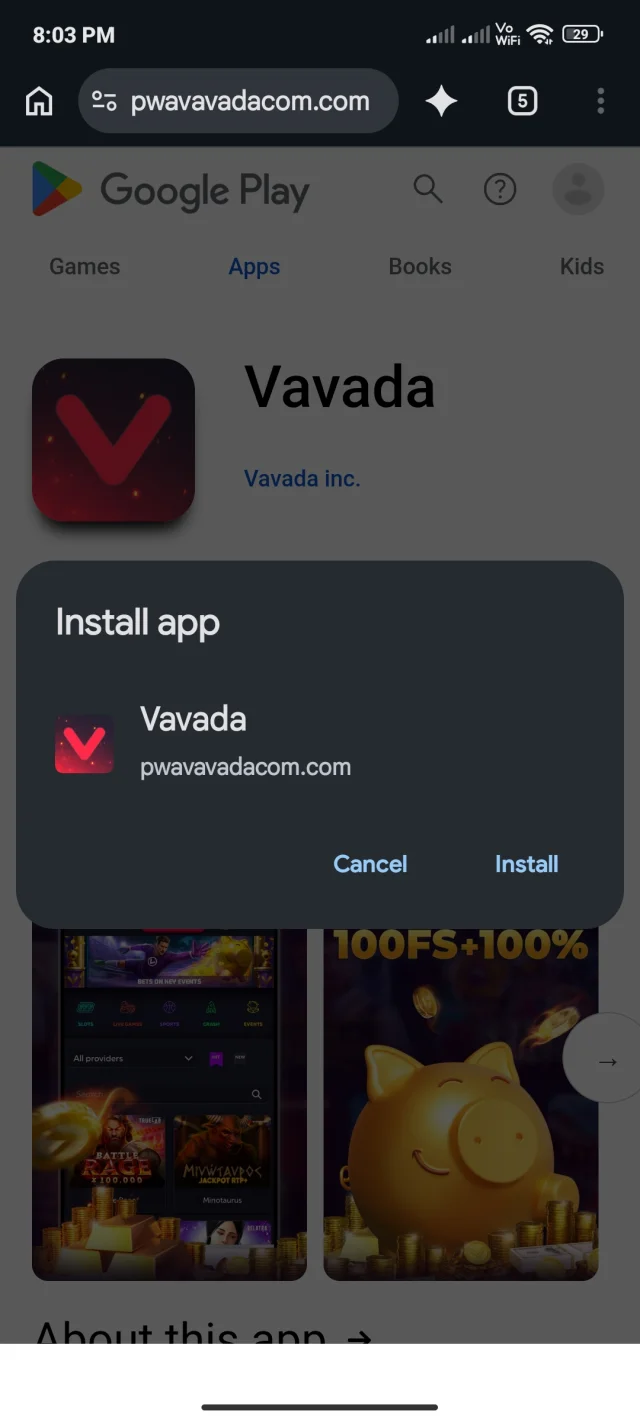
It will take you to Google play store
Tap download option after you visit to Google play store

- 6
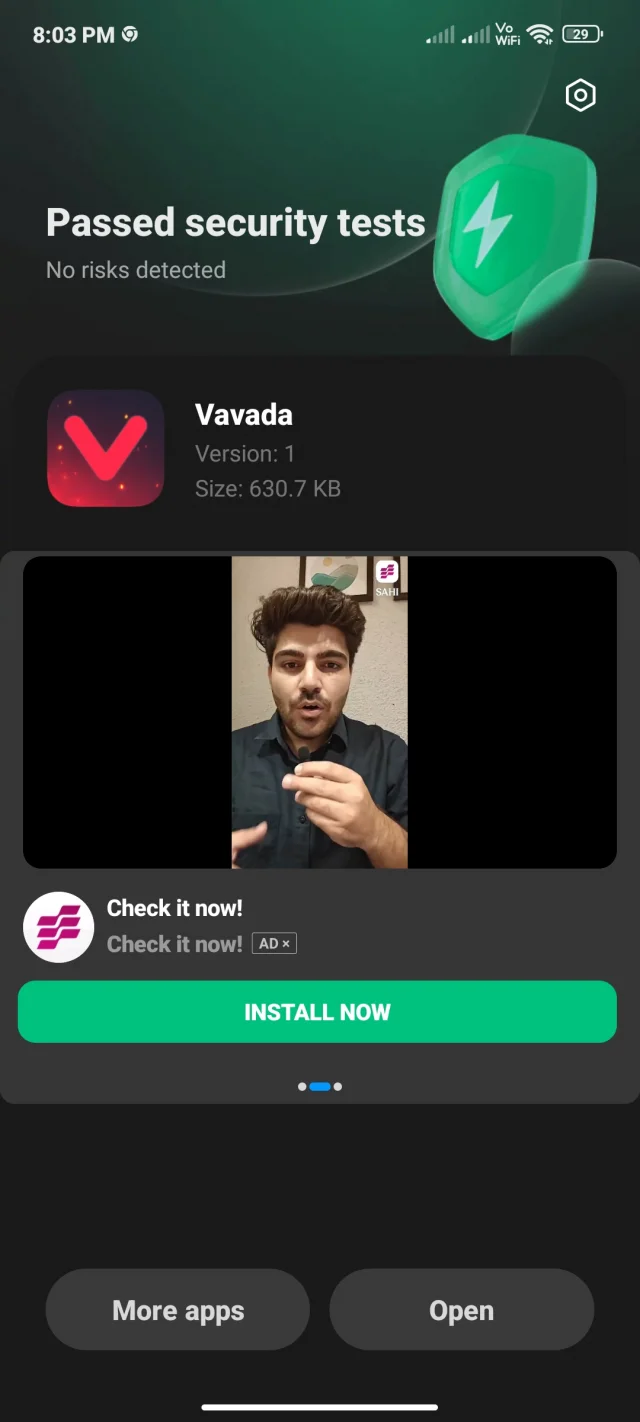
Open the APK and install
Open the downloaded file from notification or Files app. Tap Install. It usually takes less than 1 minute.
- 7
Open the app and log in
After install, open it. You still need to register or login with your mobile number. The app looks more faster than website.
- 8
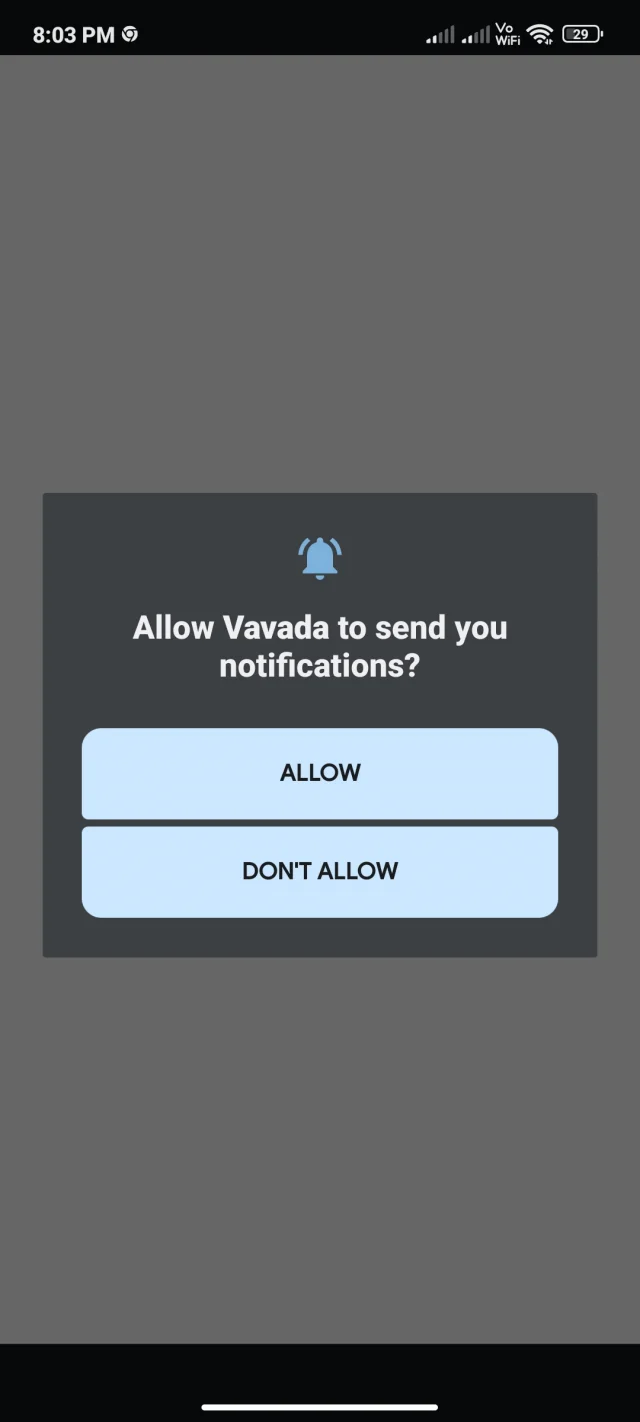
Choose your preference
Tap ALLOW if you'd like to receive alerts and updates from the app, or tap DON'T ALLOW if you prefer not to get notifications
- 9
the Registration page for your new account. Here is how to complete it:
Enter Details:
Type your Phone number or email in the first field.
Create and enter a secure Password in the second field.
Ensure your preferred Currency is set correctly (it shows INR by default).
Accept Terms: Tap the checkbox next to "I confirm that I am 18 years or older and I agree to the Terms and Conditions"
Finish: Tap the red Register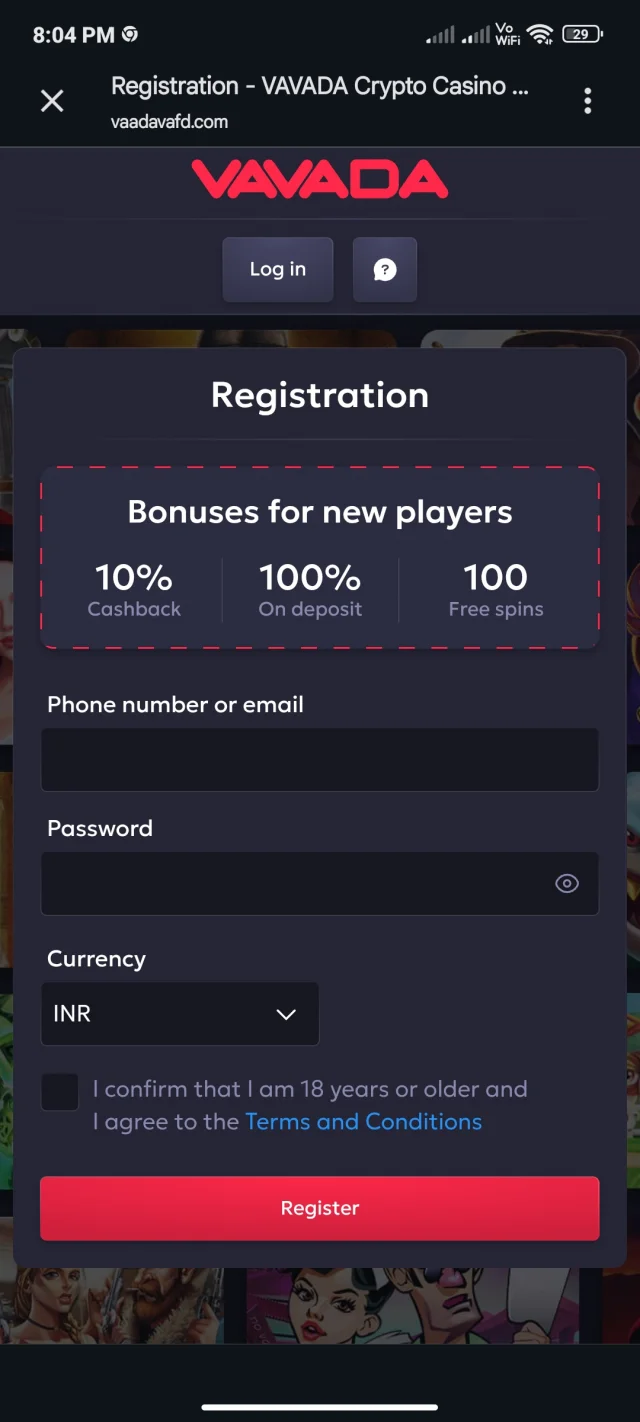
- 10
Disclaimer
Downloading and installing applications from third-party sources (outside of official app stores) carries inherent security and privacy risks. Please ensure you trust the source before proceeding, and review your device's security settings responsibly.
[Screenshot: Disclaimer]
Common Questions
What is an APK file?
What is an APK file?
APK stands for Android Package Kit. It is the file format used by the Android operating system for the distribution and installation of mobile apps.
Why does my phone show a security warning when downloading an APK?
Why does my phone show a security warning when downloading an APK?
Android displays a warning by default for any app downloaded outside the official Google Play Store to protect your device from potentially harmful software. If you trust the source, you can safely proceed by tapping "Download anyway" or "Install anyway".
How do I allow my browser to install apps?
How do I allow my browser to install apps?
If your phone blocks the installation, a prompt will usually direct you to your phone's Settings. You will need to toggle on "Allow from this source" or enable Install unknown apps for your specific web browser, then return to complete the setup.
Where do I find the APK file after it finishes downloading?
Where do I find the APK file after it finishes downloading?
You can find the downloaded file in your browser's Downloads menu (accessible via the three-dot menu in the top right of your browser) or by opening your phone’s built-in Files / File Manager app under the Downloads folder.
Do I need to update APK apps manually?
Do I need to update APK apps manually?
Yes. Unlike apps downloaded from the Google Play Store, which update automatically, third-party APK apps usually require you to download and install newer versions manually whenever updates are released by the provider.